| Primary Tools | Zapier, Slack, HubSpot CRM (or Salesforce / Pipedrive) |
|---|---|
| Skill Level | Beginner to Intermediate (no-code) |
| Build Time | 60–90 minutes |
| Monthly Cost | Zapier Starter ($19.99/mo) + Slack Pro (optional) + CRM of choice |
| Best For | Sales teams, SDRs, founders tracking inbound leads in real time |
The Real Cost of a Slow Lead Response
Speed is the only variable that separates a closed deal from a lost one when the lead is inbound. The research on this is unambiguous: response time within the first five minutes of a lead submitting a form produces connection rates that are dramatically higher than waiting even thirty minutes. Yet most sales teams are still relying on a rep manually checking their CRM dashboard, email notifications that arrive batched, or a daily digest that is stale before it is read.
I set up the system in this guide for a SaaS sales team that was averaging a 47-minute response time to demo requests. They had HubSpot, they had Slack, and they had Zapier — but none of it was connected. Leads were falling into HubSpot, a daily digest email was going to the team's shared inbox, and reps were picking up leads when they happened to check in. After wiring the Zapier automation described below, average response time dropped to under four minutes. No new headcount. No new software licenses.
This guide walks through the exact Zapier configuration, the Slack message formatting, the filter logic for lead qualification, and the specific errors you will hit if something is wired incorrectly — along with how to fix each one.
What You Are Building: The Complete Alert Architecture
Before opening Zapier, understand the data flow. The automation has a single trigger and two possible paths depending on lead qualification criteria:
- Trigger: A new contact is created in HubSpot CRM with a lifecycle stage of 'Lead' or a specific form submission source.
- Filter (Path A): Lead meets qualification criteria — company size is greater than 10 employees, or deal value is above a defined threshold. Proceeds to full alert.
- Path A — Qualified Lead Alert: Sends a rich, formatted Slack Block Kit message to #sales-alerts with lead name, company, source, and a direct CRM link.
- Path B — Unqualified Lead Log: Sends a minimal one-line message to #sales-ops-log for tracking without pulling sales rep attention.
Using two paths rather than a single unfiltered alert is important. If every form submission fires a loud Slack notification, reps stop looking at the channel within a week. Alert fatigue is the fastest way to render this entire system useless. Qualify at the Zapier layer, not downstream.
Step 1: Setting Up the HubSpot Trigger in Zapier
Log into Zapier and create a new Zap. In the trigger search bar, type HubSpot and select it. For the Event, choose New Contact. This trigger fires every time a new contact record is created in HubSpot, regardless of source.
Connecting Your HubSpot Account
Click Sign in to HubSpot. Zapier will redirect you to HubSpot's OAuth authorization screen. Select the correct HubSpot portal from the dropdown — if your company has multiple portals (common in agencies), verify the portal ID in the URL matches your production CRM, not a sandbox. Grant the requested permissions and return to Zapier.
After connecting, click Test Trigger. Zapier will pull the three most recently created contacts from your HubSpot account and display them in the trigger output panel. Examine this panel carefully — it shows the exact field names Zapier will use in all subsequent steps. The field names Zapier surfaces from HubSpot are not always intuitive:
- First name and last name appear as firstname and lastname (lowercase, no space)
- Company name appears as company
- Lead source appears as hs_analytics_source
- Lifecycle stage appears as lifecyclestage
- Contact owner appears as hubspot_owner_id — this is a numeric ID, not a name
- Deal value is not available on the contact object; you must use a Pipedrive deal trigger or HubSpot Deal trigger to access this field
Save a screenshot of the trigger output panel before moving to the next step. When you are mapping fields in the Slack message later, you will reference these exact field names.
Step 2: Adding the Filter — Qualifying Leads Before They Hit Slack
Click the plus icon below the trigger to add a step. Search for Filter by Zapier. This is a native Zapier utility — no additional app connection required.
Filter Configuration
Set the filter to continue only if the following conditions are met. Use the AND logic (all conditions must be true) or OR logic depending on your qualification model:
- Condition 1 — Exclude internal test submissions: Email does not contain your company domain (e.g., does not contain '@yourcompany.com'). This prevents every time a team member fills out a test form from generating a sales alert.
- Condition 2 — Require a company name: Company (Text) exists. Leads without a company name are almost always personal email signups with low conversion probability. Routing them to the unqualified path keeps #sales-alerts clean.
- Condition 3 — Source qualification (optional): hs_analytics_source (Text) contains 'ORGANIC_SEARCH' or 'PAID_SEARCH' or 'DIRECT_TRAFFIC'. This excludes social referrals and email newsletter signups from the high-priority alert path if your team has found those sources convert poorly.
If a lead fails any filter condition, Zapier stops the Zap here by default. To send unqualified leads to the secondary log channel (Path B), you need to use Paths by Zapier instead of Filter. Paths are available on the Zapier Professional plan and above.
Using Paths Instead of Filter for Two-Channel Routing
Delete the Filter step. In its place, add Paths by Zapier. You will see two path branches appear on the canvas. Name Path A Qualified Lead and Path B Unqualified Lead. Configure Path A with the conditions described above. Set Path B to Only continue if... Path A's rules are NOT met — Zapier does this automatically when you set the Path B condition to the inverse of Path A, or you can leave Path B with no conditions, which catches everything the first path does not.
Step 3: Configuring the Qualified Lead Slack Alert (Path A)
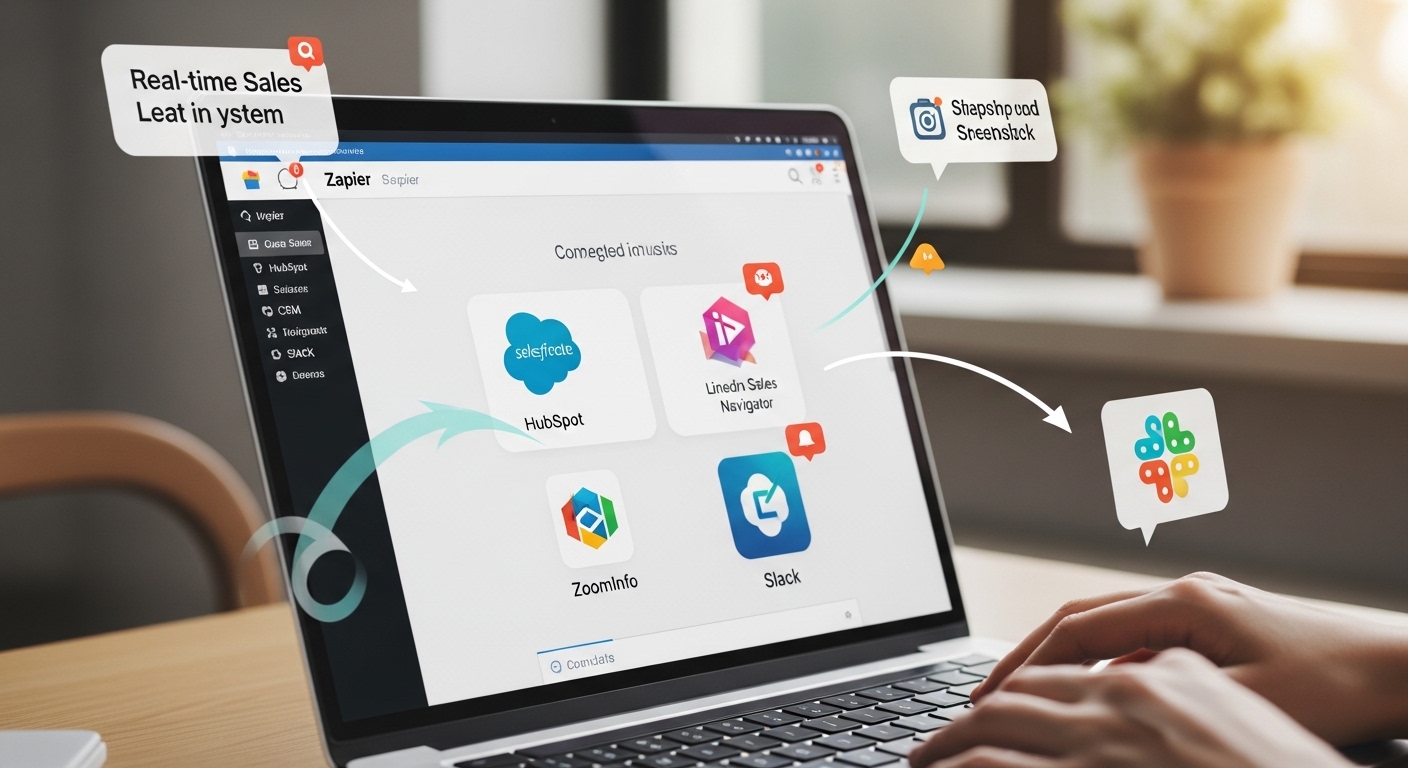
Inside Path A, add a Slack step. Search for Slack and select the Send Channel Message event. Connect your Slack workspace account. You will need to authorize the Zapier Slack integration — it requests permission to post messages to channels on behalf of your workspace. Make sure the Slack account you use for this has access to the #sales-alerts channel.
Channel and Basic Settings
- Channel: #sales-alerts (type the channel name with the # prefix; Zapier will validate it exists)
- Bot Name: LeadBot (or your preferred name — this appears as the sender in Slack)
- Bot Icon: :bell: (Slack emoji code, or paste a URL to a custom icon)
- Message Text: Leave this blank if using Block Kit formatting. If you populate both Message Text and Blocks, Slack renders only the Block Kit blocks in clients that support it, and falls back to Message Text in older clients.
Building the Block Kit Message
Scroll down to the Blocks field in the Slack step. This is where the rich message formatting is defined using Slack's Block Kit JSON structure. Zapier allows you to paste raw Block Kit JSON directly into this field, with dynamic data inserted using Zapier's field mapping syntax.
Paste the following Block Kit JSON into the Blocks field. Replace the placeholder text in angle brackets with Zapier's dynamic field mappings by clicking inside the JSON and using the field picker:
[
{
"type": "header",
"text": {
"type": "plain_text",
"text": ":zap: New Qualified Lead"
}
},
{
"type": "section",
"fields":[
{ "type": "mrkdwn", "text": "*Name:*\n<FIRSTNAME> <LASTNAME>" },
{ "type": "mrkdwn", "text": "*Company:*\n<COMPANY>" },
{ "type": "mrkdwn", "text": "*Email:*\n<EMAIL>" },
{ "type": "mrkdwn", "text": "*Source:*\n<HS_ANALYTICS_SOURCE>" }
]
},
{
"type": "actions",
"elements":[{
"type": "button",
"text": { "type": "plain_text", "text": "View in HubSpot" },
"url": "https://app.hubspot.com/contacts/<PORTAL_ID>/contact/<ID>"
}]
}
]
In the URL field of the button element, replace <PORTAL_ID> with your static HubSpot portal ID (a five-to-nine digit number found in HubSpot under Settings > Account > Account Details) and replace <ID> with the dynamic contact ID field from the Zapier trigger output. This creates a one-click link that takes the rep directly to the contact record.
Adding a Mention to Notify the On-Call Rep
To mention a specific Slack user in the message, add a fourth block of type section with text set to Assigned to: <@SLACK_USER_ID>. Replace SLACK_USER_ID with the Slack member ID of the on-call sales rep. Slack member IDs follow the format U followed by nine alphanumeric characters (e.g., U01AB2CD3EF). Find a user's member ID by clicking their profile in Slack, clicking the three-dot menu, and selecting Copy Member ID.
If you want to rotate alerts between multiple reps, this is where the logic gets more complex. One reliable pattern: maintain a single-row table in Google Sheets listing the current on-call rep's Slack member ID. Add a Zapier step before the Slack message that reads this cell value, then map it into the mention block. Updating the on-call rep requires only editing one cell in the spreadsheet.
Step 4: Configuring the Unqualified Lead Log (Path B)
Inside Path B, add a second Slack step. Use the same Slack connection. Set the channel to #sales-ops-log. For this path, use a plain text Message Text instead of Block Kit — these alerts do not need to pull rep attention, they just need to be searchable for weekly review.
Set the Message Text to:
:inbox_tray: Unqualified lead logged: <FIRSTNAME> <LASTNAME> (<EMAIL>) — Source: <HS_ANALYTICS_SOURCE>
No buttons, no section blocks, no mentions. The message should be quiet enough that the ops team can scan 50 of them in a glance during a weekly pipeline audit without feeling like they missed anything urgent.
Step 5: Testing the Full Zap Before Activating
Zapier's built-in test function sends the most recently created contact from HubSpot through all steps. Before running the test, make sure there is a test contact in HubSpot that meets your qualification criteria — otherwise the Zap will hit the Path B branch and you will be testing the wrong output.
Create a test contact in HubSpot manually with the following characteristics:
- First name: Test, Last name: Lead
- Email: test.lead@externalcompany.com (not your domain)
- Company: Test Company Inc.
- Lead source: ORGANIC_SEARCH (to satisfy the source filter if you configured one)
Run the test in Zapier. Check the following after each test run:
- Path A was selected, not Path B — verify in Zapier's test output which path was taken
- Slack message appeared in #sales-alerts with all four fields populated correctly
- Block Kit formatting rendered correctly — the header, the two-column section, and the button are all visible
- The View in HubSpot button URL is a valid link that opens the correct contact record
- The rep mention displayed as a blue @name tag, not as a raw user ID string
- #sales-ops-log received no message during this test (confirming Path B did not fire for a qualified lead)
Now create a second test contact without a company name. Rerun the test. Verify this contact triggers Path B and the plain-text message appears in #sales-ops-log while #sales-alerts receives nothing. Both paths must be verified independently — a filter condition that works in one direction does not guarantee it blocks correctly in the other.
Common Errors & How to Fix Them
Every symptom below came from real Zap deployments. If your Zap is running without error in Zapier's task history but alerts are wrong, missing, or malformed, check this section before rebuilding from scratch.
| Error / Symptom | Root Cause | Fix |
|---|---|---|
Block Kit JSON invalid |
Trailing comma after last array item, or unescaped quotes inside a mrkdwn string | Validate your JSON at Slack's Block Kit Builder (api.slack.com/tools/block-kit-builder) before pasting into Zapier. The Block Kit Builder shows render errors and highlights the offending line. |
Button URL opens wrong contact |
Portal ID in the URL is hardcoded to a sandbox or the wrong HubSpot account | Open HubSpot Settings > Account > Account Details and copy the Portal ID. Verify it matches the number in Settings > Integrations > Zapier. |
Rep mention shows raw ID, not @name |
User ID format is wrong — must be Uxxxxxxxxxx with no additional characters | Re-copy the member ID from Slack via the profile three-dot menu. Paste it directly without spaces. The <@ > wrapper must wrap the raw ID only. |
Both paths fire for same lead |
Path B has no conditions set and catches everything, including leads that also matched Path A | Set Path B's condition to Email does not contain '@yourcompany.com' AND Company does not exist. Path conditions must be mutually exclusive — Zapier does not enforce this automatically. |
Zap triggers on imported contacts |
Bulk CSV import or integration sync creates contacts and fires the trigger for each | Add a filter condition: hs_analytics_source does not contain '(not set)'. Contacts imported manually or via API often have a blank or '(not set)' source value. This filters out bulk operations reliably. |
No test data available |
Zapier's trigger test pulls only from recently created contacts; sandbox has none | Create a fresh HubSpot contact manually, wait 60 seconds, then rerun the trigger test in Zapier. Do not use the 'Use sample data' option — it loads a generic schema object with placeholder values that will not reflect your actual field structure. |
Slack step errors: channel_not_found |
Channel name typed without # prefix, or channel is private and Zapier bot is not a member | Type the channel name as #channel-name with the hash prefix. For private channels, invite the Zapier Slack app to the channel manually by typing /invite @Zapier inside the channel. |
Zap runs but no message in Slack |
Slack step completed successfully but message is filtered by Slack's duplicate detection | Slack suppresses identical messages sent within a short window. Add the contact ID (dynamic field) to the message text to make every message unique, even if the other field values are identical. |
Activating the Zap and Monitoring the First Week
Turn the Zap on using the toggle in the top-right of the Zap editor. Set the trigger frequency. For HubSpot's New Contact trigger, Zapier checks for new contacts at intervals determined by your plan: every 15 minutes on the Starter plan, every 2 minutes on the Professional plan, and every minute on the Team plan. This is not a webhook — it is a polling trigger.
During the first week, check Zapier's Task History daily. Filter by Status: Halted to find Zap runs that were stopped by the filter or path conditions. Review these records to confirm they are genuinely unqualified leads — if legitimate high-value leads are appearing in the halted list, your filter conditions are too aggressive and need to be loosened.
Also monitor the #sales-ops-log channel. The volume of messages appearing there relative to #sales-alerts tells you a lot about the quality of your inbound lead stream. If 90% of submissions are going to the unqualified path, the problem may be upstream in your marketing targeting, not in the Zapier configuration.
Three Upgrades Worth Adding After the Base System Runs
1. Lead Score Threshold Filtering via HubSpot's Lead Score Property
HubSpot's free contact scoring feature assigns a numeric lead score based on activity, firmographic data, and form interactions. Once you have scoring configured in HubSpot, add a filter condition to your Zapier Path A: hs_lead_status score (Number) is greater than 40. Adjust the threshold based on your team's conversion data. This replaces the manual company-name filter with a more data-driven qualification gate.
2. Automated Reply Reminder via Zapier Delay
After the Slack alert fires, add a Delay by Zapier step set to 10 minutes, followed by a second check: search HubSpot for recent activity on the contact using the HubSpot > Find Contact step. If no activity is logged (no call, no email sent), fire a follow-up Slack message to the same channel mentioning the rep with a reminder: ':timer_clock: No activity logged on <FIRSTNAME> <LASTNAME> yet. Response time is running.'
This keeps the system self-enforcing without building a separate reminder workflow. The rep either acts or gets a visible nudge in the channel everyone can see.
3. Enrich Lead Data with Clearbit Before Alerting
Add a Clearbit > Enrich Person step between the HubSpot trigger and the Slack step. Pass the lead's email address to Clearbit, and the response returns company employee count, annual revenue, industry, and LinkedIn profile URL — all fields that HubSpot may not have at the point of contact creation. Map these enriched fields into the Slack Block Kit message so the rep sees a fuller picture before making the first call.
Clearbit's API returns data within 2-3 seconds on average. If Clearbit cannot find a match for the email, the enriched fields come back empty — map a fallback string ('Not found') so the Slack message does not display blank fields that look like broken formatting.
What the System Looks Like After 30 Days
After running this Zap for a full month in a real sales environment, a few patterns consistently emerge. The alert channel becomes the single source of truth for inbound pipeline activity — reps stop checking their CRM dashboards hourly and start trusting the channel. This is exactly the right behavior shift. The CRM becomes a record-keeping tool; Slack becomes the action layer.
The unqualified log channel provides a month's worth of data that is genuinely useful for marketing review. Sorting the #sales-ops-log messages by source tells you exactly which acquisition channels are sending junk traffic and which are sending pipeline-ready leads. This data existed before in HubSpot, but nobody was looking at it consistently. Routing it through Slack puts it in front of the people who can act on it.
The 'View in HubSpot' button in the alert message removes one of the most common excuses for slow follow-up: 'I couldn't find the record.' One click, correct contact, ready to log a call. The friction between receiving an alert and taking action is as close to zero as a no-code stack allows.
Build the base system first. Get it running cleanly for two weeks. Then layer in the enrichment and the reply reminder. Adding complexity before the core alert is reliable is the most common mistake when building sales automation — it makes debugging exponentially harder when something breaks.