I built this Zap for a reason. Files kept arriving in Gmail and i was doing the same job: open message, download attachment, rename the file, and so on. An invoice might take thirty seconds. A contract might take a minute. None of it feels like work worth automating until you have done it dozens of times.
The first version took two steps. Gmail found a message with an attachment and Google Drive uploaded the file. That worked. Then I tested the kind of emails that show up in a work inbox. One message had three useful files. Another had a PDF plus a signature image. Two different vendors were both sending files named invoice.pdf. One sender changed the display name between emails. The simple Zap kept running, but the Drive folder was getting messy. I changed the build around those cases.
That is the version I am showing here. The file comes from Gmail and ends up in Google Drive. The main things happens in the middle: deciding which messages should enter the Zap, what the file should be called, and where it should live. Gmail supports search operators such as has:attachment, filename:, from:, subject:, date filters and labels, so a good part of the cleanup can happen before Zapier does anything else.
The First Version I Built
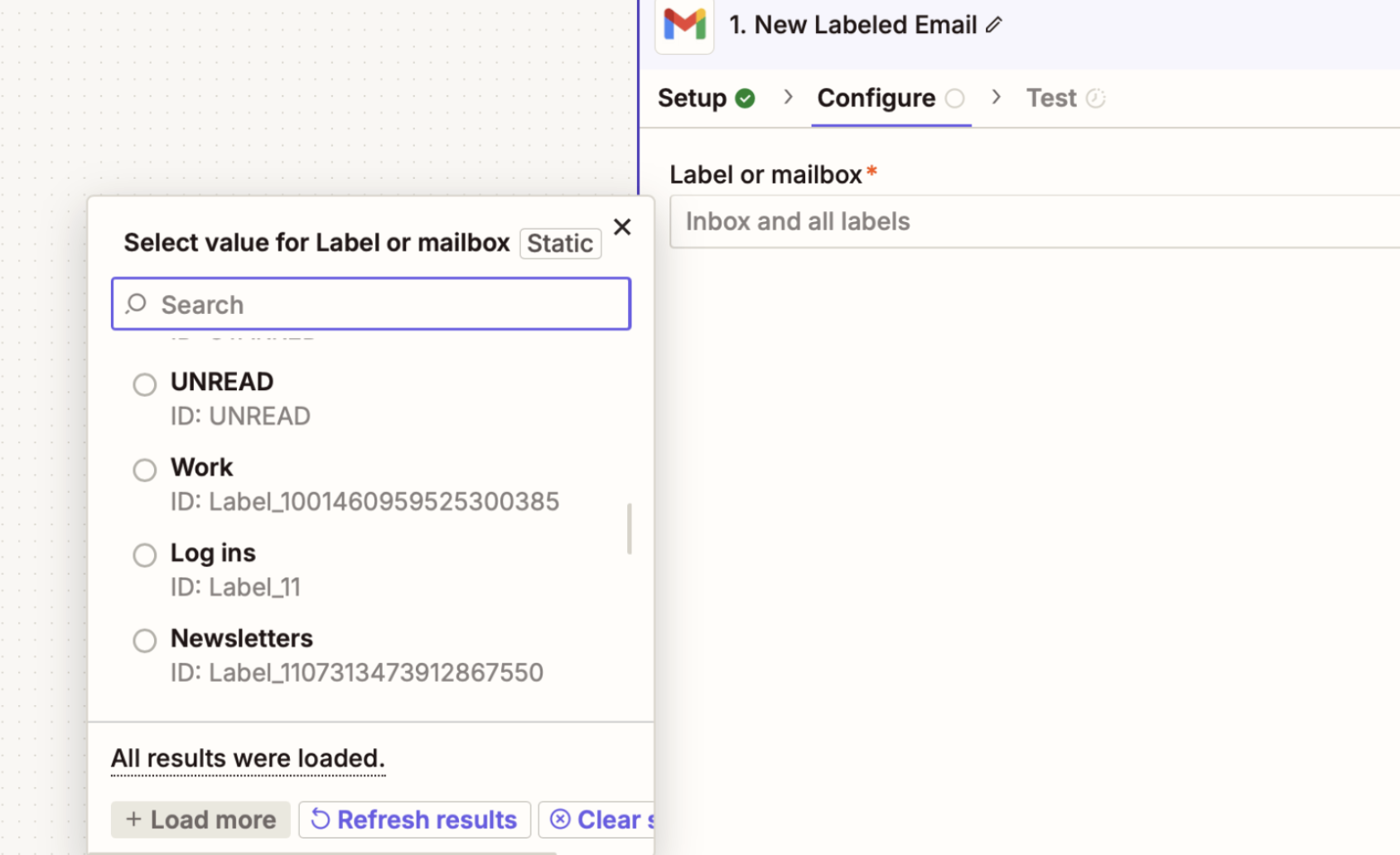
I started with Gmail and Google Drive only. I created a Drive folder called Incoming Attachments, opened Zapier, chose Gmail, then used the attachment trigger. The action was Google Drive's file upload. In the upload step, the important value is the attachment file itself. The filename is text. It cannot replace the file object that the Drive action needs.
I sent a PDF from a test Gmail account and ran the Zap. The file appeared in Drive and opened correctly. I repeated it with a Word document and an image. All three uploaded. At this point there was no reason to add Formatter, Looping, extra folders or routing. The basic connection was good.
Google Drive's current Zapier integration includes file upload plus folder search and create actions, so the later folder work can stay inside the same Zap.
Then I Stopped Watching the Whole Inbox
The broad version is has:attachment. It catches a lot. Gmail also counts inline images and other embedded content when searching for messages with attachments.
For invoices, I narrowed the Gmail search before touching the Drive step. A search like subject:invoice has:attachment works for a general invoice mailbox. A supplier-specific version can be from:billing@vendor.com has:attachment. For a PDF-only mailbox, has:attachment filename:pdf is enough to remove most unrelated files from the trigger. Gmail supports these operators directly.
I found this cleaner than adding a long list of Zapier filters at the start. Gmail already knows how to search the message. I let Gmail do that job and keep Zapier focused on the file.
The Signature Image Test
This was the first annoying case. I sent an email with a PDF attached and my normal email signature underneath it. The message looked like one document from a user's point of view. The data exposed to automation can contain the signature image as another attachment-like item.
For a PDF filing Zap, I use two checks. First, the Gmail search is narrowed with filename:pdf or a sender/subject rule. Then I filter the attachment itself when the workflow needs more control. An image MIME type can be excluded. I also use file size as a second check for workflows where tiny images should never be stored.
I do not use a fixed 10 KB rule across every business. A tiny document can be legitimate. The useful threshold depends on the files being stored. For a PDF invoice mailbox, the sender rule and PDF filter usually do more work than the file-size check.
The Folder Question Came Before the Extra Steps
I kept everything in one Drive folder long enough to see the problem. Search worked at ten files. At fifty files, I was searching by sender and date every time someone asked for a document.
I tested a date-first structure:
Gmail Attachments/
  2026/
    08/
    09/
    10/
That is good for reports and recurring monthly files because I usually remember when the file arrived. It was less useful for invoices. With invoices, I normally remember the company first.
So I tested sender folders:
Gmail Attachments/
  Acme Corp/
  Northwind/
  Accountant/
For the inbox I was working with, this was easier to use. The problem came from sender names. Email display names are not stable identifiers. One message could show Acme Corp, another Acme Billing, and both could belong to the same company.
For a short list of vendors, I normalize those names before building the folder path. For a large sender list, I stop creating a folder for every sender. A date-first structure or a small set of business categories stays easier to maintain.
File Names Matters Than Folder Name
I started seeing the same filename again and again. Vendors love names such as invoice.pdf, statement.pdf and document.pdf. Drive can store all of them, but finding the right one later becomes harder.
For invoices I use:
Acme Corp - Invoice - 2026-08-17.pdf
For general client files:
Client Name - Document Type - 2026-08-17.ext
The original filename is still useful for reference, so I keep the email in Gmail. The Drive copy gets the name that helps me identify it without opening the file.
I also stopped putting .pdf at the end of every generated name. The moment a spreadsheet enters the same workflow, that name becomes wrong. I keep the original extension or split PDF handling from the rest of the file types.
What the Gmail Trigger Gives the Zap
After testing the Gmail step, these are the fields I use most often:
| Field | How I use it |
|---|---|
| Attachment filename | Keep the original name or pull out the extension |
| Attachment file | Pass the actual file into Google Drive |
| MIME type | Filter PDFs, images, spreadsheets and other file types |
| From name / email | Build sender folders or apply sender rules |
| Subject | Create useful filenames or narrow the Gmail search |
| Date | Create month folders and date-based filenames |
| Message ID | Keep a reference to the Gmail message when needed |
The date is worth checking before you build folder names. If the Zap gives you a full timestamp and the folder only needs a month, use a Formatter step to turn it into something like 2026/08. I keep the formatting step close to the Drive action so the mapping stays easy to read.
Then I Added the Drive Upload
In the Google Drive action, I connect the account, choose the Drive, choose the target folder and map the Gmail attachment file into the File field. The filename can stay unchanged or be built from Gmail fields.
I test the upload by opening the file in Drive after the Zap runs. I check the file size too. A green Zap run is not enough for a file workflow. The file has to open and the saved name has to make sense.
Google Drive's Zapier app also supports finding or creating folders, which is useful when the folder path changes by sender or date.
Four Attachments Changed the Setup
One useful PDF is easy. An email with four useful attachments changes the data shape. The workflow has to process each attachment as its own file.
That is where I add Looping by Zapier. The attachment list goes into the loop and the Drive upload sits after it. Each pass handles one attachment. A message with four files then produces four upload runs.
I also put the file filter inside the loop. This matters when an email contains one PDF and two signature images. The PDF passes and the two images get stopped on their own. The other attachment does not get blocked by the filter that rejected the image.
Looping by Zapier is the current tool for repeating later Zap steps over items in a list. Zapier's documentation lists it as available across its current plan lineup and notes that the feature is in open beta.
I Keep Invoice Zaps Separate From General File Zaps
I tried a single Zap that handled invoices, contracts, screenshots, spreadsheets and general client documents. The filters kept growing. A rule for invoices was useless for contracts. A filename rule for PDFs caused problems as soon as an Excel file entered the same inbox.
Now I split them when the filing rules are different. The invoice Zap can watch known senders and save PDFs into vendor folders. A general documents Zap can keep a wider search and preserve the original filename. An image workflow can use its own destination.
There is a practical limit here. If the inbox has only a few files a week, separate Zaps add more screens to maintain than they remove. I keep the workflows together while the rules stay close. I split them when the rules start fighting each other.
My Test List Before I Turn the Zap On
I use a short list of emails instead of testing one perfect attachment. Each case catches a different mistake.
| Test email | What I check |
|---|---|
| One PDF | The file uploads and opens |
| One Word or Excel file | The extension remains correct |
| PDF + signature images | The document is kept and images are filtered |
| Four useful files | Each attachment gets its own Drive file |
| Two files with the same original name | The generated names stay identifiable |
| Wrong sender | The Gmail search or filter rejects it |
| Old matching email | The test does not confuse an old message with a broken trigger |
I check the Drive folder after every test. I look at the name, folder, file size and the actual file. This catches things the Zap editor does not show clearly.
The Gmail Search Operators I Keep Nearby
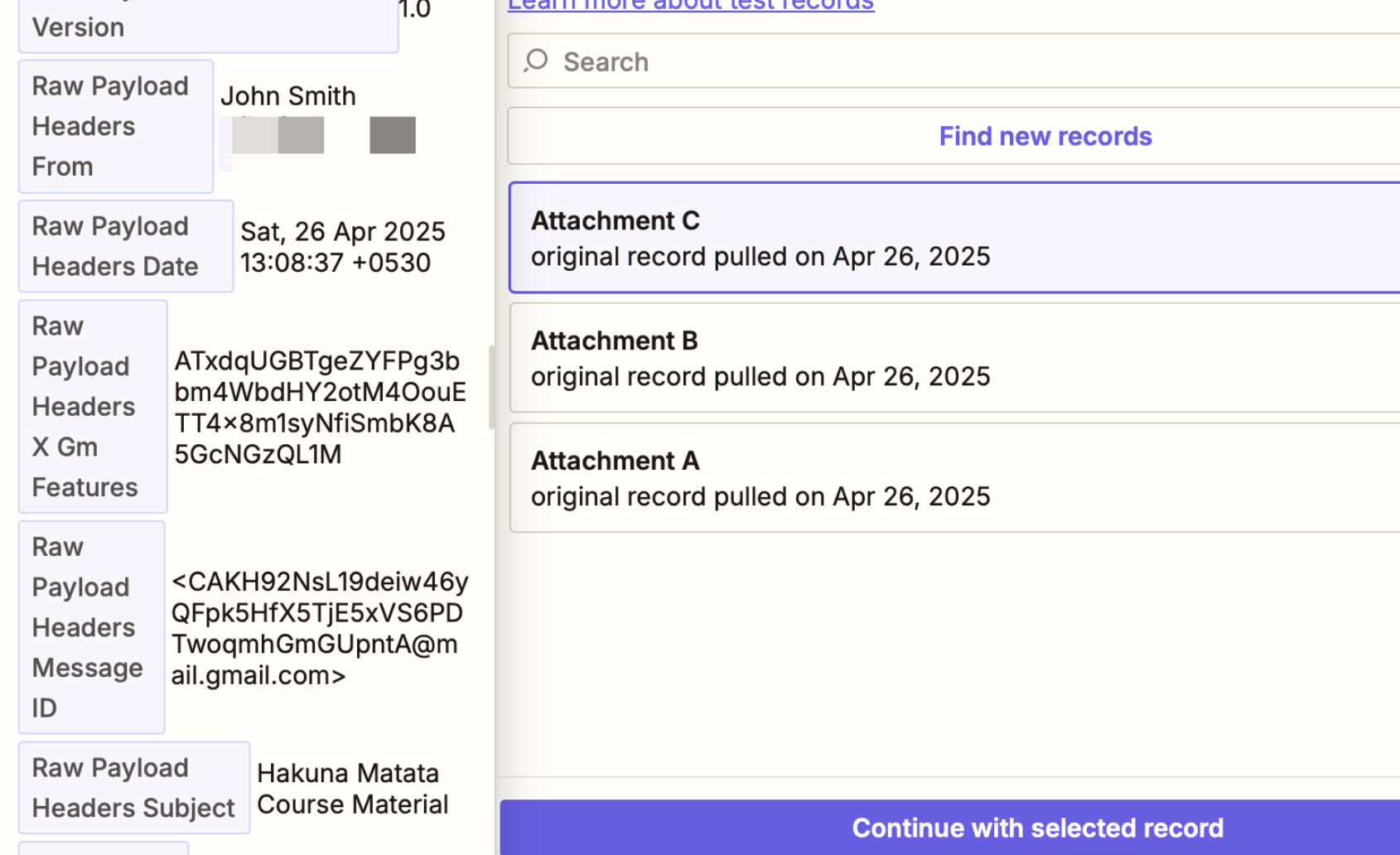
These are the ones I use most for this type of Zap:
| Use | Search |
|---|---|
| Any attachment | has:attachment |
| PDF only | has:attachment filename:pdf |
| One sender | from:billing@vendor.com has:attachment |
| Invoice subject | subject:invoice has:attachment |
| Exclude a sender | has:attachment -from:noreply@example.com |
| Recent messages | has:attachment newer_than:7d |
| Large attachments | has:attachment larger:5M |
| Specific Gmail label | label:invoices has:attachment |
These operators come from Gmail itself, so they are useful outside Zapier too. Gmail's current search reference lists has:, filename:, from:, subject:, size filters, dates and labels.
A Small Privacy Check I Always Do
I don't turn on a broad attachment saver for an inbox that contains sensitive files. A mailbox can contain identity documents, contracts, payroll files or customer information mixed with ordinary messages. A Zap that saves every attachment can move those files into a Drive location that has a different group of people with access.
For sensitive mail, I narrow the Gmail search first. I also use the Drive folder with the intended permissions. This takes a minute to check and can prevent a file from landing in the wrong place.
The Setup I Keep for an Invoice Inbox
Gmail: New Attachment
        ↓
Gmail search: subject:invoice has:attachment
        ↓
Filter: allowed file type
        ↓
Loop if the email can contain several files
        ↓
Formatter: date + filename
        ↓
Google Drive: Find/Create Folder
        ↓
Google Drive: Upload File
That is enough for most invoice filing jobs I come across. More steps only come in after a real requirement shows up.
How I Handle Zapier Task Usage
The number of steps matters when the Zap runs often. A Gmail trigger followed by Formatter, Filter and Drive upload can use several Zapier tasks for one incoming attachment. Add a loop and one email with five files can produce several action runs. The actual task count depends on the steps that execute, so I check Zapier's current task usage after the Zap has been running for a few days.
I don't add a Formatter step just because the editor offers one. If the original filename works, I keep it. If Gmail already filters out the wrong messages, I don't repeat the same rule in several places. This keeps the Zap easier to inspect and keeps usage under control.
What I Keep and What I Leave Out
I keep the Gmail search focused. I keep the file type filter close to the upload. I use Looping only when emails really contain several useful files. I use generated filenames when the original names are too generic. I keep the Drive path predictable so a person can find the file without opening the Zap.
I leave document approval outside this Zap. I also leave full document management out of it. Drive is handling the files. Gmail is handling the email. Zapier is moving the file and applying the filing rules. That boundary keeps the automation useful without turning it into a system that tries to manage everything.
The Final Version
The first two-step Zap was enough to prove the connection. The version I keep has a few more pieces because the inbox needs them.
I built those pieces after seeing the actual files. It is easy to decide on the right folder structure after seeing the real names and senders than it is to invent a complex folder tree before the first test.
The final flow looks like this:
Gmail → Filter → Loop when needed → Filename → Folder → Google Drive
After that, the manual download work is gone. The useful part is the archive left behind: the files are in a known folder, names give enough context to identify them, and the junk attachments do not get saved along with the documents.