At a Glance
| Platform | Notion, Make.com (Integromat), Tally.so |
|---|---|
| Skill Level | Intermediate (no-code) |
| Time to Build | 3–5 hours |
| Cost Estimate | Notion Free + Make.com Core ($9/mo) + Tally Free tier |
| Best For | Agencies, consultants, freelancers onboarding 5+ clients/month |
The Problem: Client Onboarding Drains More Time Than the Work Itself
If you run an agency or freelance practice, you already know the pattern. You close a deal on Friday, and the next five business days disappear into a fog of follow-up emails, chasing down brand assets, resending the same intake questionnaire for the third time, and manually creating a shared project folder the client still cannot find. By the time actual work begins, both parties are already faintly irritated with each other.
I spent two years onboarding clients entirely by hand before building the system described in this guide. The breaking point came when I had four clients start within the same week. Between sending welcome emails, setting up Notion workspaces, collecting signed contracts, and scheduling kickoff calls, I logged over 11 hours of pure administrative work that generated zero billable output.
The system below eliminates that entirely. When a new client submits their intake form, every downstream action — Notion database entry creation, welcome email dispatch, internal Slack alert, and shared workspace provisioning — fires automatically without a single manual click.
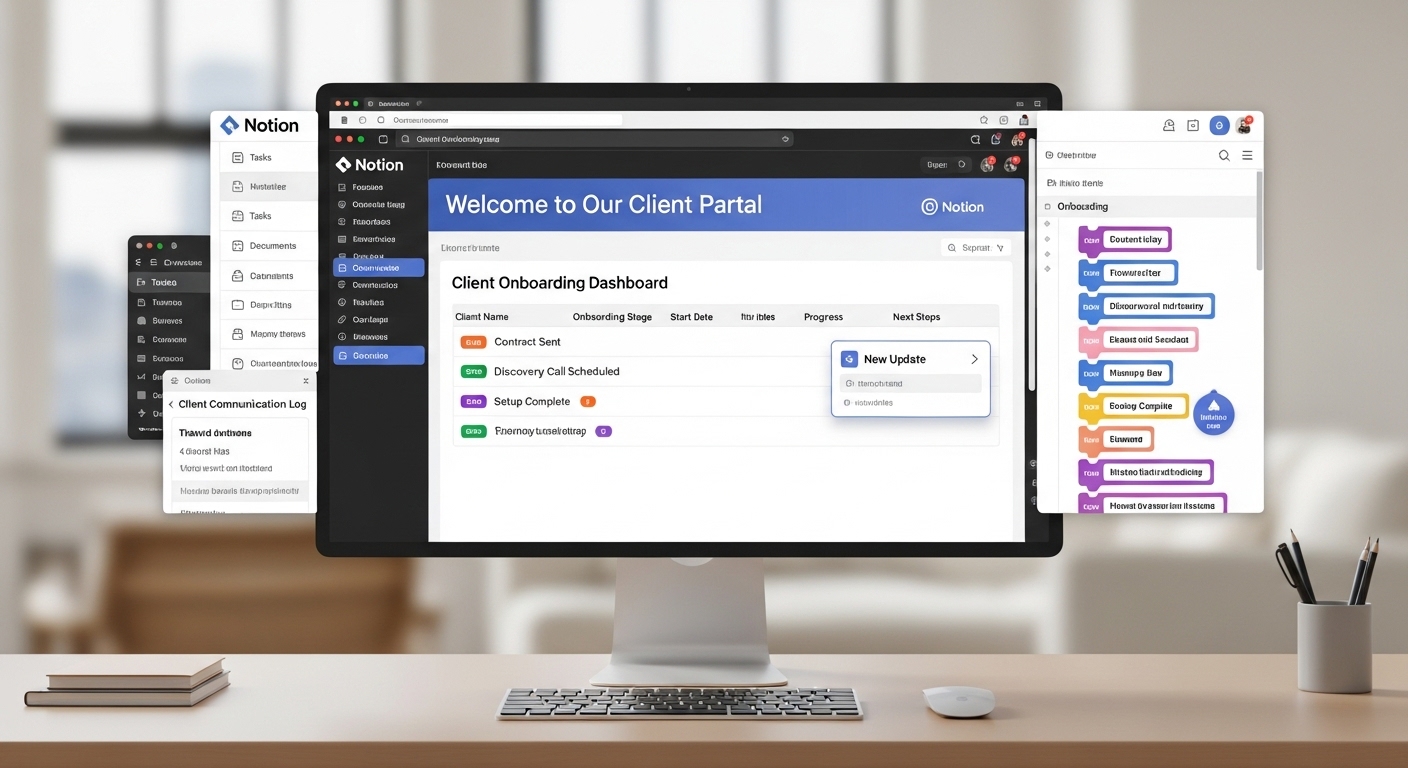
Architecture Overview: How the Three Systems Connect
Before touching any platform, map the data flow. I always sketch this before opening a single browser tab, because misunderstanding the sequence is the single most common reason onboarding automations produce incomplete or duplicate records.
The Three-Layer Stack
- Layer 1 — Intake (Tally.so): Client-facing form that collects all required project data in a single submission. Tally is preferred here over Typeform because its free tier sends webhook payloads with no field-count restrictions, and its native Notion integration is unreliable enough that you are better served routing through Make.com anyway.
- Layer 2 — Orchestration (Make.com): Receives the webhook from Tally, parses the JSON payload, maps each field to a Notion database property, and triggers all parallel notification actions. This is where all business logic lives.
- Layer 3 — Operations Hub (Notion): Stores the structured client record, auto-generates a linked project workspace page, and serves as the source of truth for everything downstream — invoicing, task management, status tracking.
The payload moves in one direction: Tally fires POST request to Make.com webhook URL, Make.com parses and routes, Notion API receives structured property writes. There is no polling, no scheduled triggers, and no risk of missed submissions due to rate-limit windows.
Step 1: Building the Notion Client Database
Open your Notion workspace and create a new full-page database. Name it Clients. The schema you set here must mirror exactly what your intake form will collect, because Make.com maps form fields to Notion properties by name — any mismatch creates a silent failure that writes a blank property rather than throwing a visible error.
Required Database Properties
Set up the following properties with the exact types listed:
- Client Name — Title (this is Notion's default Name field; do not rename it)
- Company — Text
- Email — Email
- Phone — Phone
- Service Package — Select (options: Starter, Growth, Enterprise)
- Project Start Date — Date
- Onboarding Status — Status (options: New Lead, Intake Received, Workspace Ready, Kickoff Scheduled, Active)
- Intake Submission ID — Text (stores Tally's unique submission identifier for deduplication)
- Assigned PM — Person
- Client Workspace — URL (stores the generated client-facing Notion page link)
dateBetween(now(), prop("Created time"), "days"). This gives you an instant aging report on unprocessed submissions without building a separate dashboard.
Capturing Your Notion Database ID
You will need your database ID to configure the Make.com Notion module. Open the database as a full page (not inline), look at the URL. The database ID is the 32-character alphanumeric string between the last slash and the question mark:
https://www.notion.so/yourworkspace/abc123def456...?v=xyz
^^^^^^^^^^^^^^^^^^^^^^^^ ← this segment
Copy and save this. You will paste it into the Make.com Notion module under Database ID. If you accidentally use the view ID (the string after ?v=), the module returns a 404 on every execution — a mistake I have made more than once.
Step 2: Configuring the Tally Intake Form
Create a new form in Tally. The field names you use in Tally become the keys in the webhook JSON payload. Make.com will reference these exact keys when mapping to Notion properties. Keep them clean, lowercase, and without spaces — use underscores instead.
Recommended Field Structure
- client_name — Short text, required
- company_name — Short text, required
- email — Email field type (Tally validates format client-side), required
- phone — Phone field type, optional
- service_package — Dropdown, options must match your Notion Select values exactly: Starter, Growth, Enterprise
- project_start_date — Date picker, required
- project_brief — Long text (multi-line), optional
- how_did_you_find_us — Dropdown, for internal analytics
Enabling the Webhook
Inside your Tally form, navigate to Integrations > Webhooks. Click Add Webhook. Leave this tab open — you will paste the Make.com webhook URL here after completing the next step. Set the trigger to On Submit. Do not enable the test event option yet; wait until Make.com is actively listening before sending a test payload.
Step 3: Building the Make.com Scenario

This is where the orchestration lives. Every mapping decision you make here determines whether the automation runs cleanly or silently drops data. I will walk through each module in the order they should appear in your scenario canvas.
Module 1: Custom Webhook (Trigger)
In Make.com, create a new scenario. Add the first module by searching for Webhooks > Custom Webhook. Click Add, name it Tally Client Intake, and copy the generated webhook URL. Paste this URL into your Tally webhook configuration from the previous step.
Now click Save in Make.com and then Run Once. Switch to your Tally form, fill it out as a test client, and submit. Make.com will catch the payload and display the parsed JSON structure in the module output panel. This is the data structure you will reference for all subsequent mappings.
Understanding the Tally Payload Structure
Tally's webhook delivers a JSON object. The top-level keys you care about are inside the fields array. Each field object has a label (the display name), a key (your machine-readable field name), and a value. When mapping this JSON string in Make.com, you access individual field values using the following path notation:
{{1.data.fields[].value}}
The complication is that Tally sends all fields as an array, not as a flat object. This means you cannot map client_name directly as {{1.client_name}}. You must either use Make.com's array iterator or use the Get function to pull values by their key. I strongly recommend the iterator approach — it is more resilient when Tally adds optional fields that may sometimes be absent from the payload.
Module 2: Array Iterator
Add a Flow Control > Iterator module connected to the webhook trigger. In the Array field, map {{1.data.fields}}. This splits the Tally fields array into individual items that can be processed one at a time. You will then use a Router module to direct each field to the correct Notion property.
If you prefer a flat approach without an iterator, use Make.com's built-in map() function inside a Tools > Set Variable module to extract all field values into named variables before the Notion module. Both approaches work; the iterator is more scalable when your form grows beyond 15 fields.
Module 3: Router with Notion Create a Database Item
Skip the iterator approach for now and use the faster flat-mapping method. After the webhook trigger, add a Notion > Create a Database Item module. In the Connection field, connect your Notion account using the official Notion integration. When prompted, select your Clients database.
Property Mapping Reference
Map each Notion property to the corresponding Tally field value using Make.com's dynamic mapping panel:
- Client Name (Title): {{1.data.fields[0].value}}
- Company (Text): {{1.data.fields[1].value}}
- Email (Email): {{1.data.fields[2].value}}
- Service Package (Select): {{1.data.fields[4].value}}
- Project Start Date (Date): {{formatDate(1.data.fields[5].value; "YYYY-MM-DD")}}
- Onboarding Status (Status): Intake Received (hardcoded string — do not map dynamically)
- Intake Submission ID (Text): {{1.data.submissionId}}
Module 4: Send Welcome Email via Gmail / SMTP
After the Notion module, add a Gmail > Send an Email module (or SMTP if you use a custom domain). Connect your agency email account. Structure the email as follows:
- To: {{1.data.fields[2].value}} (the client email from Tally payload)
- Subject: Your [Agency Name] Onboarding Is Confirmed — Here Is What Happens Next
- Body: Write a plain-text email body. Include the client's first name parsed from the client_name field using Make.com's substring() function, the service package they selected, their project start date, and a link to their Notion workspace once Module 5 generates it.
If you want to include the Notion workspace URL in the welcome email, you must reorder the modules so the Notion page creation happens before the email dispatch. Use the Notion module output {{3.url}} (the page URL returned after creation) and include it in the email body.
Module 5: Create the Client Workspace Page
This module provisions the actual shared workspace the client will use throughout the project. Add a second Notion > Create a Page module. Set the parent to a Notion page (not a database) called Client Workspaces — this should be a private page in your workspace that contains one subpage per client.
Set the page title to {{1.data.fields[0].value}} — Project Workspace. In the page content, use Notion's blocks to add a structured template: a header block with the client name, a callout block with the kickoff date, and section headers for Project Brief, Assets Received, Meeting Notes, and Deliverables. These are created using the Notion API's children blocks array, which Make.com exposes through the Add Content Block option in the module.
After this module runs, pipe the returned page URL ({{5.url}}) back into a Notion > Update a Database Item module that writes the Client Workspace URL property on the record created in Module 3. Use the page ID returned by Module 3 ({{3.id}}) as the identifier for the update call.
Module 6: Slack Notification to Internal Channel
Add a Slack > Create a Message module. Connect your agency Slack workspace. Set the channel to #onboarding-alerts or your equivalent internal channel. Use the following message format:
:tada: New client onboarding received
*Client:* {{1.data.fields[0].value}}
*Company:* {{1.data.fields[1].value}}
*Package:* {{1.data.fields[4].value}}
*Start Date:* {{formatDate(1.data.fields[5].value; "MMM D, YYYY")}}
*Notion Record:* {{3.url}}
*Client Workspace:* {{5.url}}
Step 4: Testing the Full Scenario End-to-End
Before activating the scenario, test it in Make.com's manual run mode. Do not use Tally's built-in test webhook payload — it sends a payload with empty string values for all fields, which will create a blank Notion record and clutter your database with junk entries.
Instead, submit your intake form in a private browser window using realistic test data. Use a real email address you control (your own or a Gmail alias) so you can verify the welcome email arrives with correct field values. Check the following after each test run:
- Notion Clients database shows a new record with all 10 properties populated correctly
- Onboarding Status is set to Intake Received, not blank
- Project Start Date is formatted as a date object, not a text string (Notion will reject date strings that are not ISO 8601 format)
- Client Workspace page exists under Client Workspaces with the correct template structure
- Client Workspace URL property on the database record links to the correct page
- Welcome email arrived with the client name and start date correctly interpolated
- Slack message appeared in #onboarding-alerts with all six data points visible
Run this test at least three times with different service package values to confirm the Select property writes correctly across all three options. Notion Select properties are case-sensitive — if your Tally dropdown sends 'growth' and your Notion property expects 'Growth', the write will fail silently and leave the field blank.
Common Errors & How to Fix Them
This section covers the specific failure modes I have encountered running this exact stack across dozens of client setups. If your scenario executes with zero errors in Make.com but your Notion database shows missing or blank properties, the issues below are the most likely culprits.
| Error | Root Cause | Fix |
|---|---|---|
401 Unauthorized |
Notion integration not added to the database | Open the Clients database, click Share (top right), search for your Make.com integration by name, and click Invite. The integration must be added to every Notion object it writes to, including the Client Workspaces parent page. |
400 Bad Request on Date |
Date field value not in ISO 8601 format | Wrap the date mapping in Make.com's formatDate() function: formatDate(1.data.fields[5].value; "YYYY-MM-DD"). Tally sends dates in various regional formats depending on the user's browser locale. |
Select property blank |
Case mismatch between Tally option and Notion option | Open both Tally and Notion, verify the dropdown option labels are character-for-character identical, including capitalisation. Edit one to match the other. |
Duplicate records on resubmit |
No deduplication logic in the scenario | Add a Notion > Search Objects module before the Create module. Search for existing records where Intake Submission ID equals {{1.data.submissionId}}. Use a Router to skip creation if a result is returned. |
429 Rate Limit Error |
Notion API rate limit hit during bulk test runs | Notion's API allows 3 requests per second per integration. If running load tests, add a Tools > Sleep module set to 400ms between Notion API calls. In production single-submission flow, this limit is never reached. |
Empty array on Iterator |
Fields array is empty in Tally payload | This happens when Tally sends a test event instead of a real submission. Always test using a live form submission, not Tally's built-in Send Test Event button, which delivers a schema-only payload with no field values. |
Workspace page missing content blocks |
Notion blocks not added in Create a Page module | In Make.com's Notion > Create a Page module, scroll to the Children section and manually add each block using the Add Content Block option. Blocks must be explicitly defined — the module does not inherit a page template from Notion. |
Scenario times out at 40s |
Too many sequential Notion API calls in a single path | Split the scenario into two Make.com scenarios. The first handles Notion record creation. Use a Make.com webhook call at the end of Scenario 1 to trigger Scenario 2, which handles workspace page creation and email dispatch. |
Step 5: Activating the Scenario and Setting Run Frequency
Once your test runs pass all seven checkpoints, activate the Make.com scenario using the toggle switch in the bottom-left of the scenario canvas. Set the scheduling to Immediately — this means Make.com processes webhook payloads as they arrive, without waiting for a scheduled polling window.
Do not set a scheduled interval. Scheduled scenarios only check for new webhook payloads at fixed intervals (every 15 minutes on the free tier, down to every minute on higher tiers). When the trigger is a webhook, the Immediately setting bypasses the schedule entirely and runs within seconds of the payload arriving.
Scaling the System: Three Additions Worth Building Next
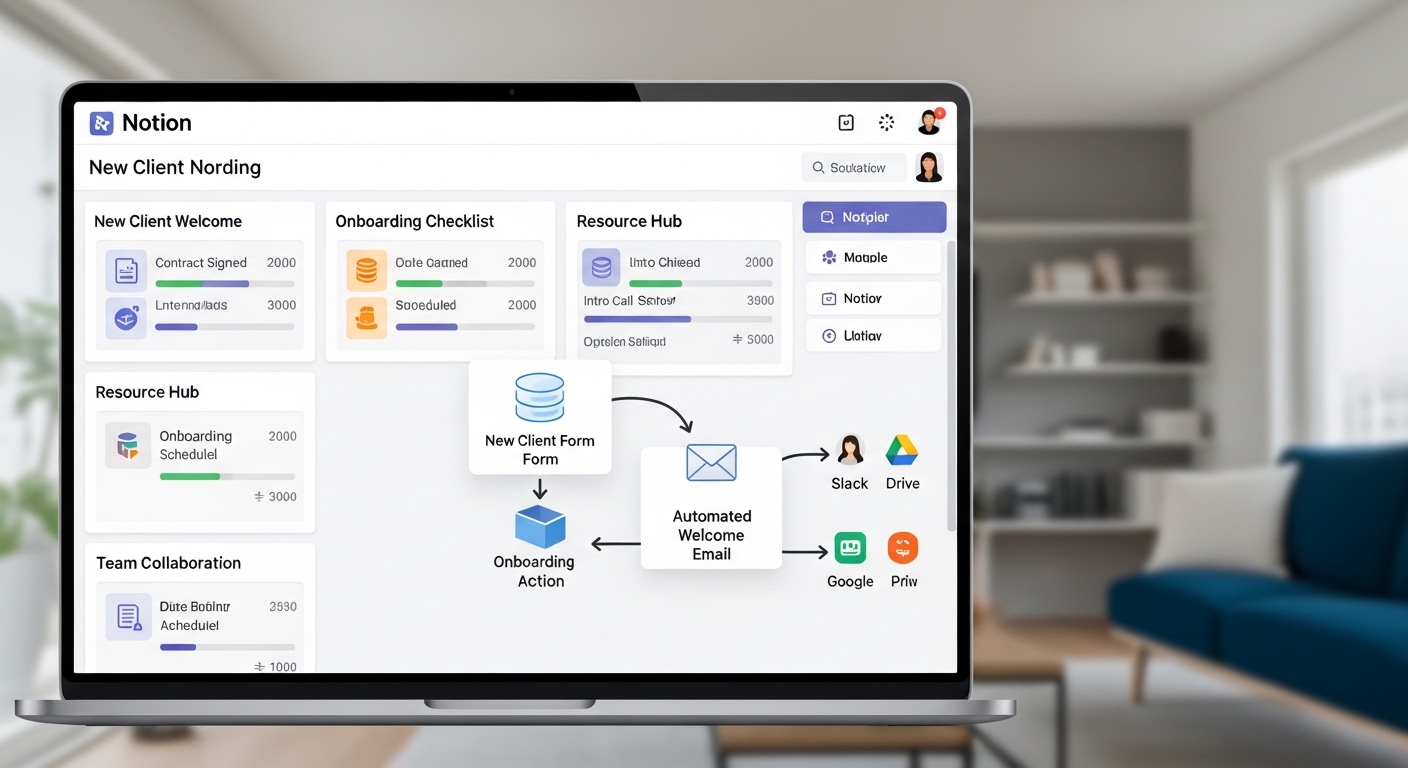
1. Automated Kickoff Call Scheduling via Calendly
Add a Calendly > Create a One-Off Event Type Link module after the welcome email module. Pass the client's name and email as pre-fill parameters in the Calendly URL. Include the scheduling link in the welcome email body. When the client books, a separate Make.com scenario triggered by Calendly's webhook can update the Onboarding Status to Kickoff Scheduled and write the meeting date to a new Date property in the Clients database.
2. Contract Generation and E-Signature via PandaDoc
Add a PandaDoc > Create Document from Template module after the Notion record creation step. Map the client name, company, service package, and project start date to the corresponding template tokens. PandaDoc returns a document URL that can be included in the welcome email. When the client signs, PandaDoc fires a webhook that Make.com can catch to update the Onboarding Status to Active and log the signed date.
3. Client-Specific Notion Subdomain via Guest Invite
Notion allows you to invite external users as guests to specific pages without granting workspace access. After creating the client workspace page, add a Notion > Create a Page Share Link module (using the Notion API's page sharing endpoint) and a subsequent email step that delivers the page link with explicit instructions. Pair this with a Notion page template that includes an embedded Loom welcome video from your team.
What This System Actually Changes Day-to-Day
After running this automation for six months across my agency, the measurable impact is not just time saved. The consistency of the onboarding experience improves client perception from the first interaction. Every client receives the same quality of welcome email, the same structured workspace, the same internal notification to the PM team — regardless of whether they submitted at 9am on a Monday or 11pm on a Saturday.
The Notion database becomes a living operations record. Because every property is written automatically at intake, filtered views and dashboard reports are accurate from day one without anyone remembering to update a CRM field. I have a filtered view called Needs Kickoff that shows every client where Onboarding Status is Intake Received and the kickoff call has not yet been scheduled — it updates in real time without manual data entry.
The internal Slack notification eliminates the daily 'did the new client sign up?' question entirely. The PM team sees a new onboarding alert appear in Slack with all the relevant context, clicks the Notion record link, and can begin project scoping immediately — before the client has even received and read the welcome email.
The total build time for the base system described in this guide is three to five hours, depending on your familiarity with Make.com's module configuration UI. The maintenance overhead once it is running is effectively zero. The only time you will revisit the scenario is when you add a new field to the intake form, which requires adding one mapping in the Make.com Notion module — a 90-second operation.
Final Notes Before You Build
A few things worth stating plainly before you start:
- Test in a duplicate Notion workspace first. Do not build and test directly in your production workspace. Duplicate your Clients database to a sandbox workspace and run all tests there. Notion has no undo for database records created via API.
- Store your Make.com webhook URL as a secret. Anyone with the URL can POST data to your scenario and create records in your Notion database. Use Make.com's webhook token validation (under the webhook module settings, enable IP restriction or shared secret validation) to prevent spoofed submissions.
- Back up your Make.com scenario as a blueprint. Under the scenario three-dot menu, click Export Blueprint. Save the JSON file. If your Make.com account is suspended or you want to migrate, this blueprint rebuilds the entire scenario in minutes.
- Version your Tally form. If you update the form and change field order, your array index mappings in Make.com break instantly. When updating the form, always update the Make.com mappings in the same session and run a full test before reactivating.
The system described in this guide is the exact architecture running inside my own agency's intake workflow as of this writing. Every module name, property type, and error scenario described above is drawn from real build experience, not hypothetical configuration. Build it once, and your onboarding process scales without adding headcount.